
Track using an external provider
We integrate with all the major yacht tracking providers, so you can see all your sailing friends on a single map. This page explains how to configure them to work with noforeignland.
On board trackers
Section titled “On board trackers”Signal K
Section titled “Signal K”Signal K is an open data standard and platform designed specifically for marine applications, enabling modern, networked communication of boat data across onboard systems, mobile devices, and web applications.
If you are running Signal K on board, it provides a fantastic tracking option. Install the Signal K plugin and it will automatically upload an accurate GPS track to noforeignland whenever it has an internet connection.
The Signal K plugin is maintained by volunteers and is available to download for free.
Sailserver
Section titled “Sailserver”Sailserver manufactures and supplies an NMEA 2000 device that provides you with automatic position logging.
To update your boat position on noforeignland with your Sailserver:
- Open Boat settings.
- Choose Boat details.
- Make sure your MMSI number is correct.
- Save any changes.
- Contact Sailserver support and ask them to forward your boat’s GPX track to noforeignland.
Each time you move your boat, Sailserver will send us a GPX update (with your MMSI number) which we will use to update your boat.
Kontro
Section titled “Kontro”Kontro is a monitoring dashboard for your Victron energy system that can forward your track to noforeignland.
See their help page for full setup instructions.
Sway provides a dedicated NMEA and Wi-Fi gateway that acts as an electronic logbook and records all vessel movement.
You can forward your track from Sway to noforeignland.
See their help page for full setup instructions.
EasyHub by DPNav
Section titled “EasyHub by DPNav”DPNav EasyHub is a smart NMEA to Wi-Fi Gateway which supports boat tracking, boat-polar generation, automatic logbook and an instrument dashboard.
See their help page for full setup instructions.
Satellite based trackers
Section titled “Satellite based trackers”Garmin inReach
Section titled “Garmin inReach”To configure your Garmin inReach tracking, you will first need to find your KML data feed URL for Garmin inReach tracking:
- Sign in to your inReach web account using a computer (not a phone) at
explore.garmin.com. - Click the Social tab.
- Click on Feeds (if Feeds does not appear, click ‘MapShare: Off’ and refresh the page).
- Copy the Raw KML Feed URL.
Now that you have your KML URL, you need to:
- Open your boat page on our website.
- Open Boat settings.
- Choose Boat tracking.
- Choose Garmin inReach.
- Enter your KML URL in the form and wait for it to validate.
- Make sure the Garmin tracking switch is in the ON position.
- Save your changes.
Iridium GO!
Section titled “Iridium GO!”By configuring your Iridium GO! to periodically send GPS position reports to noforeignland, you can accurately and reliably update your position on our map from anywhere in the world.
You will need to configure both your Iridium GO! device and your noforeignland account:
- Open your boat page on our website.
- Open Boat settings.
- Choose Boat tracking.
- Choose Iridium phone and GO!.
- Enter your Iridium phone number (usually starts with 88).
- Save your changes.
Then in the settings for your GO! device:
- Sign in to your Iridium GO! app.
- Select SETTINGS → TRACK
- In the section labelled TRACKING RECIPIENT enter this email address:
tracking@noforeignland.com. - Set the TRACKING FREQUENCY to 4 hours.
Now, when turned on, your Iridium GO! will periodically send position reports to our tracking email address. The incoming message’s phone number will be used to identify your boat and a fix will be added to your journey if your boat’s position has changed.
PredictWind + Iridium GO!
Section titled “PredictWind + Iridium GO!”When using your Iridium GO! via PredictWind, you can track your boat’s progress on both the PredictWind and noforeignland maps.
Start by setting up your GO! for PredictWind:
- Follow PredictWind’s instructions to configure tracking on their map.
- Contact PredictWind customer services and ask them to forward your Iridium tracking messages to the noforeignland tracking email address:
tracking@noforeignland.com.
Then configure your noforeignland account to handle the incoming tracking messages:
- Open your boat page on our website.
- Open Boat settings.
- Choose Boat tracking.
- Choose Iridium phone and GO!.
- Enter your Iridium phone number (usually starts with 88).
- Save your changes.
PredictWind DataHub
Section titled “PredictWind DataHub”PredictWind’s DataHub records your GPS track and sends it to their servers. To see your DataHub track on noforeignland you need to:
- Follow the instructions in your DataHub manual and configure your tracking with them.
- Contact PredictWind customer services and ask them to forward your DataHub tracking messages to noforeignland.
Then configure your noforeignland account to handle the incoming tracking messages:
- Open your boat page on our website.
- Open Boat settings.
- Choose Boat tracking.
- Choose PredictWind DataHub.
- Enter your DataHub serial number.
- Save your changes.
Satellite Phones
Section titled “Satellite Phones”Iridium satellite phones
Section titled “Iridium satellite phones”If you have an Iridium satellite phone that can send your location, then you can use it to update your position on the noforeignland map.
Refer to your phone’s user manual for how to send an SMS message to an email address, and how to find the Insert Location option. On an Iridium Extreme, for example, it can be found here:
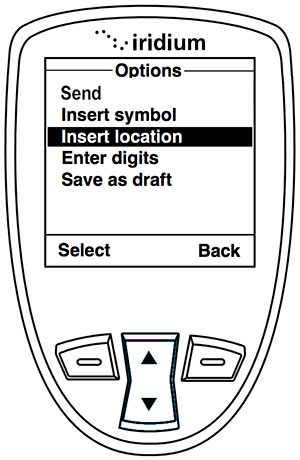
To set up your phone to work with noforeignland, update your boat settings as follows:
- Open Boat settings.
- Choose Boat tracking.
- Choose Iridium phone and GO!.
- Enter your Iridium phone number (usually starts with 88).
- Save your changes.
Now, on your phone use the Insert Location menu to send an SMS message to this email address: tracking@noforeignland.com
Other satellite phones
Section titled “Other satellite phones”If your phone is capable of sending email messages, then you can still update your boat position with it by emailing us your location.
Advanced Tracking
Section titled “Advanced Tracking”Advanced Tracking supplies satellite tracking beacons. They have their own website which can show the location of your beacon on a map and offer integration with noforeignland.
Contact Advanced Tracking customer support and ask them for your API Key and the Asset ID for your beacon. You can then:
- Open Boat settings.
- Choose Boat tracking.
- Choose Advanced Tracking Konectis.
- Enter your API Key and Asset ID and wait for them to be validated.
- Make sure the Advanced Tracking switch is in the ON position.
- Save your changes.
Setting up your SPOT to track your boat position on noforeignland is very easy:
- Open Boat settings.
- Choose Boat tracking.
- Choose SPOT.
- Enter the name for your SPOT where indicated in the form.
- Save your changes.
- In your SPOT device, add
tracking@noforeignland.comto the list of email addresses that will receive your Check In messages.
Now each time you send a Check In message, your boat will be moved to the coordinates in that message.
YB Tracking
Section titled “YB Tracking”We’ve been working with YB to make tracking your boat on the noforeignland map simple.
Contact YB Tracking customer support and ask them to activate the data feed for your tracker. They will send you a data feed URL in an email.
- Open Boat settings.
- Choose Boat tracking.
- Choose YB Tracking.
- Copy and paste the data feed URL from the email into the form and wait for it to validate.
- Make sure the YB Tracking switch is in the ON position.
- Save your changes.
Zoleo is a simple device capable of sending email and SMS messages using the Iridium satellite network, making it suitable for offshore tracking.
As the Zoleo is able to send emails, you can submit position reports and stories for your journey by following the instructions for emailing us your location.
You might also like to read this blog article written by the first boat to track across the Atlantic using Zoleo with noforeignland:
Other mobile apps
Section titled “Other mobile apps”In addition to the noforeignland app, the following apps can be used to update your location:
Anchor Easy
Section titled “Anchor Easy”A feature rich anchor alarm available for Android an iOS, which can remind you to update your location on noforeignland when you set an anchor alarm.